Multi-window Interface
Migration notice: This page was converted from the legacy TO3000 3D CHM. Classification: KEEP. Legacy wording is evidence only — verify against current TO3000 7.1 / qa before treating as authoritative.
Every time you click an icon on the Ribbon to open a table, report, calendar, dashboard, or knowledgebase, it opens in a new window inside the program.
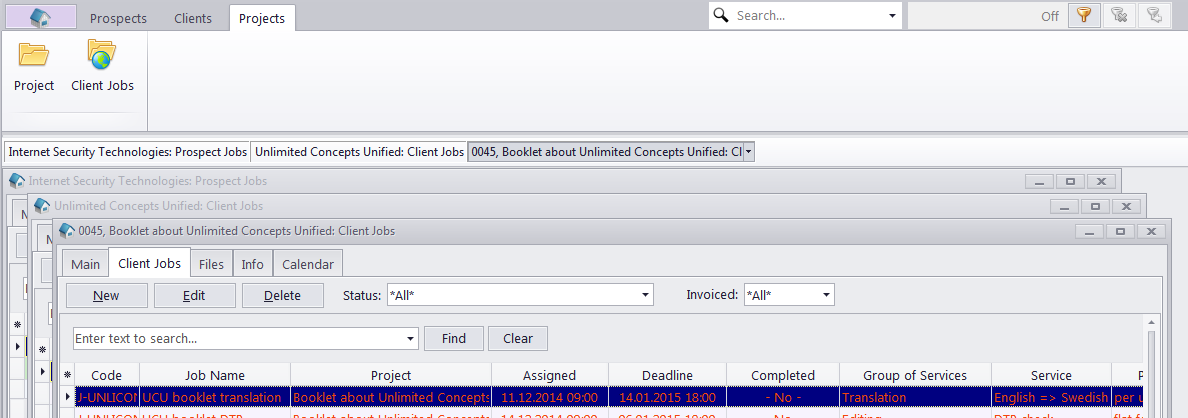
These windows can be manipulated just like the window of the program itself: moved, resized, maximized, minimized and closed.
The control buttons for a maximized window are found directly under the control buttons for the program itself.

Minimized windows are lined up right above the Navigation Bar and can be moved around as well.

Jump tabs
Every open window creates a new Jump tab just below the Ribbon.

Clicking a jump tab will immediately bring the corresponding window to the front. Clicking the arrow on the right side of a tab will bring down a menu that will allow you to close either that particular window, all windows in the current section, or all windows except the current one.
Quick Window Modes
Section titled “Quick Window Modes”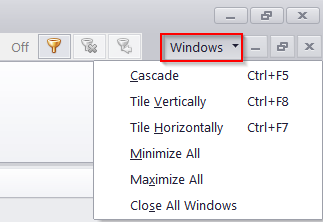
The “Windows” drop down menu near the top right corner of the main window offers a number of quick options for the layout of currently open windows:
-
Cascade - line up the windows behind each other os that the header and left edge of each is visible.
-
Tile Vertically - move and re-size the windows so that all are fully visible, with priority given to lining them up side-by-side.
-
Tile Horizontally - similar to Tile Vertically, but gives priority to stacking windows on top of each other.
-
Minimize All / Maximize All - minimize/maximize all currently open windows.
-
Close all Windows - immediately closes all windows.

See also: